Teleprompter With Notes: Save, Time & Load Your Scripts
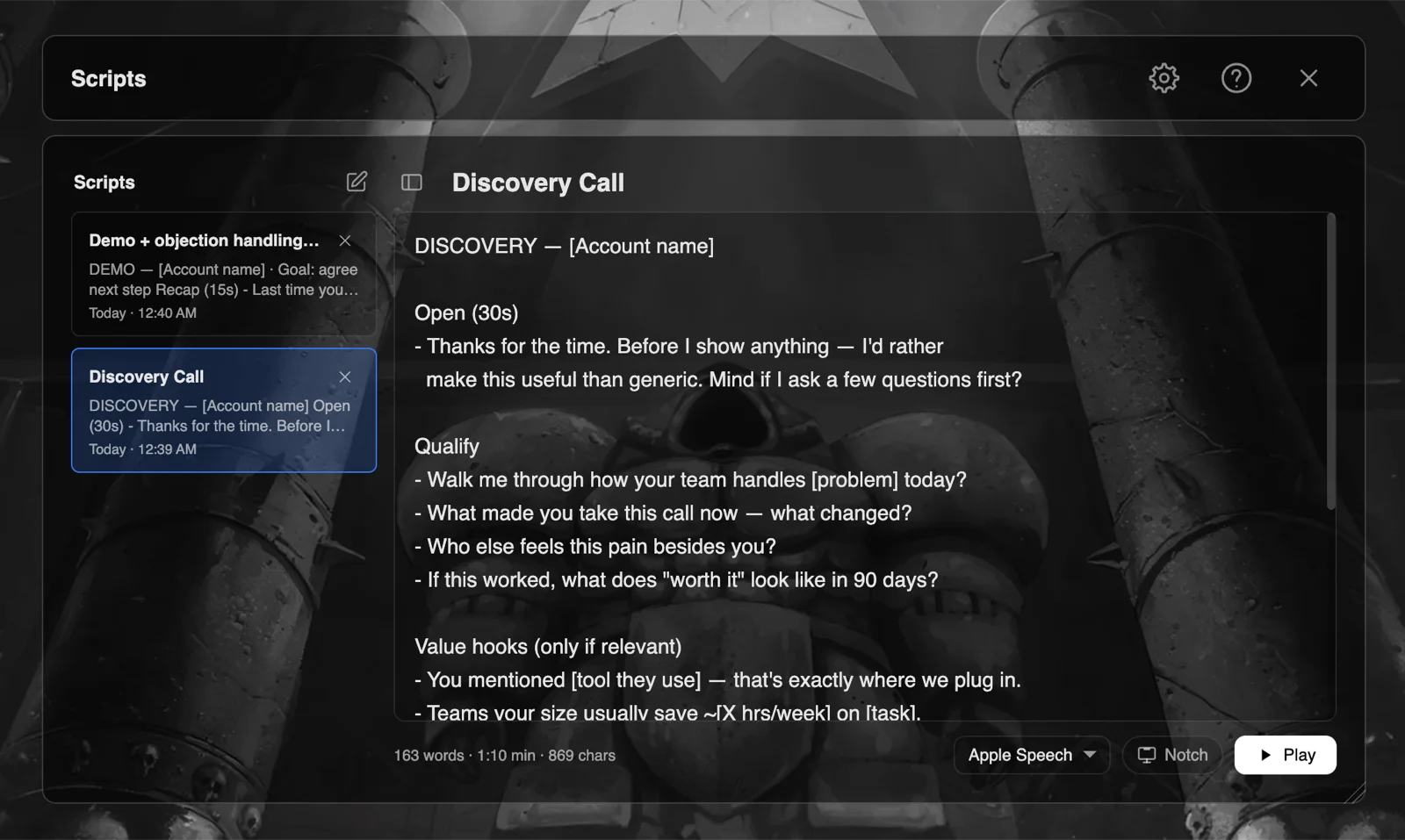
Yes — ShareSpeak is a teleprompter with built-in notes, called the Scripts Library. Save a named script per call, per account, or per video; see a live word count and speaking-time estimate as you write; then hit Play (⌘Enter) to load any saved script straight into the prompter. It's a one-time $14.99 on Mac and Windows, and stays invisible when you share your screen.
Updated: July 2026
New in v0.3.0 (July 2026): the Scripts Library. ShareSpeak now saves and reloads your scripts, so a teleprompter with notes is built in — no separate notes app, no re-pasting.
What a teleprompter with notes should do
A prompter that makes you paste your text fresh every session isn't really keeping your notes. ShareSpeak's Scripts Library does four things:
Save a script per call, account or video
Keep a named entry for each thing you present — a sales call, a client account, a specific video. They stay in your library so you're not pasting fresh text every time.
Live word count as you write
The word count updates while you type or paste, so you can trim a script to length before you ever hit record.
Speaking-time estimate
Alongside the word count, ShareSpeak estimates how long the script takes to say out loud — handy for fitting a 2-minute intro or a timed demo.
Play loads it into the prompter
Hit Play (or ⌘Enter) on a saved script and it loads straight into the teleprompter — notch mode or a floating overlay — ready to read with voice-follow scrolling.
How the Scripts Library works
- Open ShareSpeak and create a new entry in the Scripts Library — type your notes or paste a script; plain text is all it needs.
- Give it a name (e.g. “Acme demo”, “Episode 12 intro”) so you can find it again. Watch the live word count and speaking-time estimate as you edit.
- Save it. Your scripts stay in the library on your Mac or PC — a private, local list you build up over time.
- When it's time to present, pick the script and hit Play (⌘Enter). It loads into the teleprompter and voice-follow scrolls it at your pace.
Who saved scripts help most
Sales & demo teams
Keep a script per account so every call opens with the right pitch. See how it works for sales demos.
YouTubers & creators
Save a script per video and check the speaking-time before you record. Built for YouTube creators.
Course & training makers
Build a library of lesson scripts, reuse and edit them per module, and keep each one to a planned length with the speaking-time estimate.
Job-interview prep
Save your answers as scripts, trim them to time, and keep them invisible on the call — see the interview teleprompter.
Saved scripts vs. pasting text every time
Many teleprompters treat your script as throwaway text — you paste it, use it, and it's gone next time. A teleprompter with notes keeps a reusable library instead. PromptSmart popularized this notes-style workflow, and it's their headline feature — but it's a subscription, and for larger teams it adds nested folders and admin controls.
ShareSpeak matches the everyday job — saved, named scripts with a live word count and speaking-time estimate — as a one-time $14.99 desktop app. It's deliberately single-user and local (no cloud, folders, or tags), so if you need team-wide script management, PromptSmart is built for that; if you want a personal script library without a monthly fee, ShareSpeak fits. See the full ShareSpeak vs PromptSmart comparison.
A teleprompter that keeps your scripts
Save named scripts, time them, and load any one with a tap — invisible on screen share, voice-following, one-time $14.99 for Mac and Windows.
Frequently Asked Questions
Does ShareSpeak have a teleprompter with notes?
Yes. ShareSpeak includes the Scripts Library — a place to save your notes and scripts inside the teleprompter. You can keep a named script per call, per account, or per video, see a live word count and speaking-time estimate as you write, and hit Play to load any saved script straight into the prompter. It's included in the one-time $14.99, with no account required.
Can I save more than one script?
Yes. You can save as many named scripts as you like — one per call, per client account, or per video — and edit any of them in-app at any time. They stay in your library so you can reuse and update them instead of re-pasting text for every session.
Does it show word count and speaking time?
Yes. As you write or paste a script, ShareSpeak shows a live word count and an estimate of how long the script takes to say out loud. That makes it easy to trim a script to fit a time slot before you record or present.
How do I load a saved script into the teleprompter?
Select the script in your Scripts Library and hit Play, or press ⌘Enter. The script loads into the teleprompter — in notch mode or a floating overlay — and voice-follow scrolling advances it as you speak.
Where are my scripts stored — is there cloud sync or folders?
Your scripts are stored locally, in the app on your Mac or PC, as a single-user list. ShareSpeak keeps this deliberately simple: there's no cloud sync, no folders, and no tags — just your saved, named scripts on your own device. If you need team-wide script management with nested folders and admin controls, a tool like PromptSmart is built for that (at a subscription); ShareSpeak is a one-time, single-user app.
Is the Scripts Library included in the price?
Yes. The Scripts Library is part of ShareSpeak's one-time $14.99 purchase — there's no add-on, subscription, or separate fee. One license also covers both Mac and Windows.
More reading: AI Teleprompter for Mac, best teleprompter for Mac, best teleprompter for Windows, or download ShareSpeak.