Teleprompter for Microsoft Teams — Invisible Notes for Demos, Sales Calls & Presentations
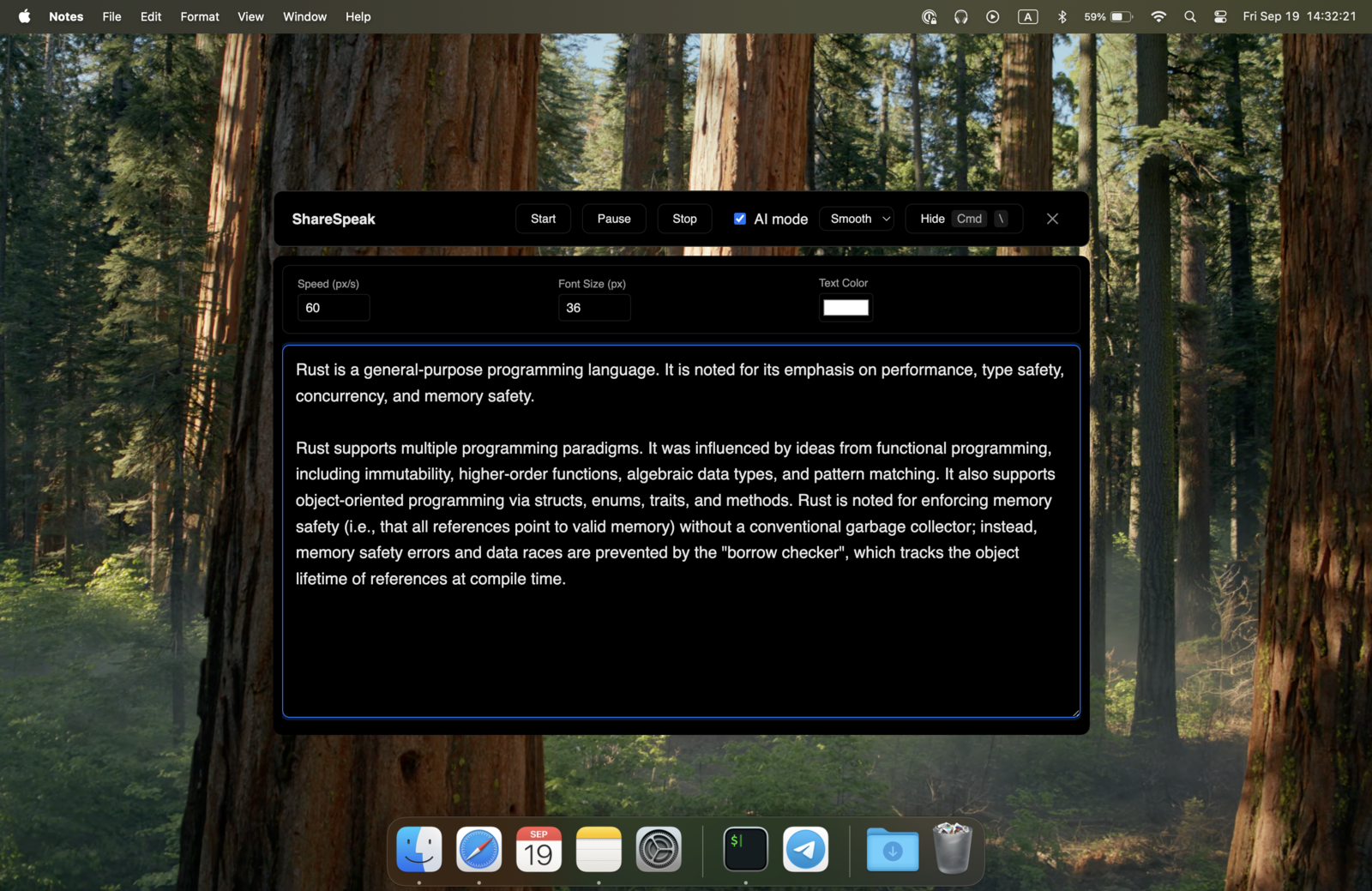
ShareSpeak overlays your talking points on top of Microsoft Teams — invisible to every attendee. Run sales demos, present QBRs to clients, lead all-hands meetings. They see your screen share or your face. You see all that plus your script. AI voice tracking keeps the text moving at your pace. No IT approval needed.
The Microsoft Teams Presenter's Dilemma
You're running a sales demo, presenting to leadership, or hosting a customer success call on Microsoft Teams. You have your deck, a live product demo, maybe a Dynamics dashboard to show. You also have a script — the value propositions, the metrics, the client-specific numbers you absolutely cannot get wrong.
Your options without ShareSpeak:
- PowerPoint speaker notes — disappear the moment you share your screen or use PowerPoint Live.
- Second monitor with notes — your eyes drift sideways and every senior leader on the call notices.
- Printed script — looking down constantly, paper rustling on the mic.
- Phone propped next to screen — same eye-darting problem, and your face goes off-camera.
- Memorize everything — and blank on the deal size in front of the prospect.
ShareSpeak solves all of these. Your script floats on top of Microsoft Teams, visible only to you — invisible during screen share, invisible in Teams meeting recordings, invisible to live captions.
How ShareSpeak Works with Microsoft Teams
Invisible During Screen Share — and in Teams Meeting Recordings
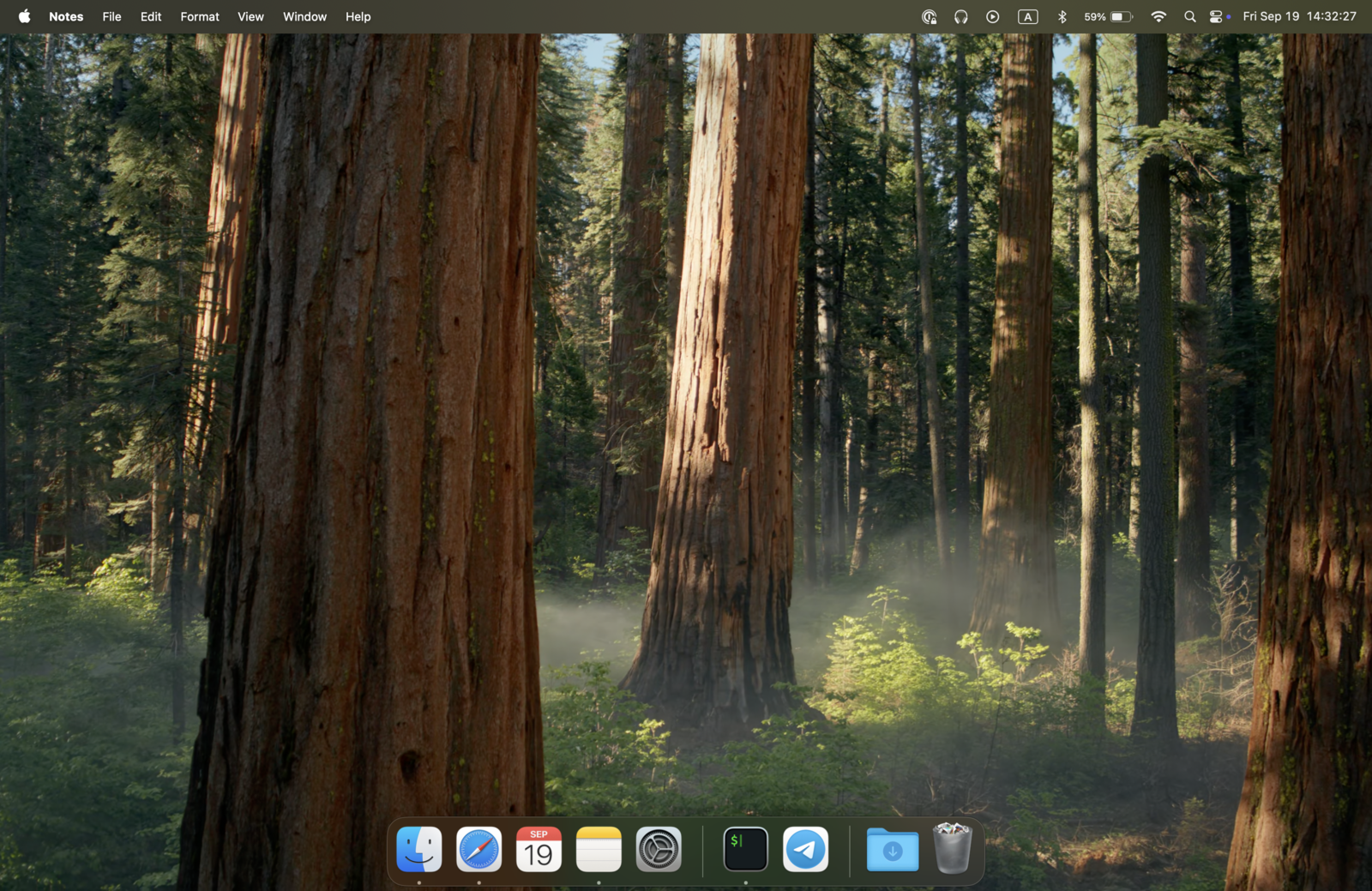
When you share your screen, a window, or use PowerPoint Live in Microsoft Teams, ShareSpeak is excluded from the capture at the OS level. The window genuinely doesn't exist in the shared output — not transparent, not hidden behind layers, just absent.
This also means ShareSpeak is invisible in Microsoft Teams meeting recordings (which auto-save to OneDrive/SharePoint). If your manager reviews the recording tomorrow, they see a clean demo — not your talking-points scaffold.
AI Voice Tracking — For Live Demos and Back-and-Forth Calls
Microsoft Teams meetings are rarely monologues. You're presenting, then answering a question from procurement, then jumping back to the demo, then handling an objection. You can't be fiddling with scroll controls between thoughts. ShareSpeak follows your voice — the text scrolls at your pace, with no input from you.
- Stakeholder asks a question? Pause to answer — the teleprompter waits.
- Prospect wants to see a specific feature? Switch to the demo — pick up your script when you return.
- CFO interrupts with a budget question? Go off-script — come back to exactly where you left off.
- Need to slow down for emphasis on a key metric? Speak slowly — the text matches.
No IT Approval, No Admin Install, No Microsoft 365 Integration
In most enterprises, getting any new tool approved is a months-long ordeal. Security review, procurement, vendor onboarding, IT testing. ShareSpeak skips all of it because:
- No Microsoft Teams integration — it doesn't connect to Teams, Microsoft 365, or your tenant at all. It's a standalone desktop app that overlays on your screen.
- No admin install — installs to your user folder, not Program Files. No admin password required on Windows.
- No data leaves your machine — scripts stay local, voice recognition runs on-device. No cloud, no telemetry, no Microsoft Graph API calls.
- No Teams app store listing — your IT doesn't see it in the admin center because it's not a Teams app.
Download it to your work laptop. Install in 30 seconds. Use it on your next Teams meeting. That's the entire workflow.
Overlays on PowerPoint Live, Demos, Dashboards — Anything You Show
ShareSpeak sits on top of whatever you're presenting in Microsoft Teams. Position it at the top of your screen, the bottom, the side — wherever it doesn't block your content. It works alongside:
- PowerPoint Live in Teams — talking points for each slide while you present
- Product demos — script for walking prospects through your features
- Dynamics 365, Salesforce, HubSpot — client-specific account details to cite
- Power BI dashboards — context for the metrics on screen
- Live coding & technical demos — narration for code walkthroughs
- Excel, Word, browser tabs — anything visible in your Teams share
One overlay. Every type of B2B presentation. Always invisible to attendees.
Camera Mode — Natural Eye Contact for Camera-On Calls
Not every Teams meeting needs a screen share. Customer success check-ins, 1:1s, leadership briefings — you're often just talking to the camera. On MacBooks with a notch, ShareSpeak places your script right next to the FaceTime camera. Your eyes naturally land near the lens while you read.
Switch between notch mode (face-to-camera) and floating overlay (screen sharing) as your presentation flow changes. Both invisible to attendees. Both work whether Teams background blur is on or off.
The B2B Meetings That Make or Break Your Quarter
Sales Demos & Discovery Calls
Walk prospects through your product with every value prop, ROI claim, and account-specific detail scripted. Never miss the line that closes the deal.
Quarterly Business Reviews
Present to leadership with every metric, action item, and forecast on screen. The C-suite sees confident delivery — not someone reading from a doc.
Customer Success Reviews
Bring account history, expansion talk tracks, and renewal numbers into every CS call. Account-specific scripts mean clients feel heard, not handled.
Training & Onboarding
Deliver consistent onboarding sessions and L&D content via Teams. Every cohort gets the same well-rehearsed delivery — without exhausting your subject-matter expert.
All-Hands & Town Halls
Address the entire org with polished delivery. Quarterly updates, leadership announcements, M&A news — everything scripted, nothing visible to the audience.
Webinars & Live Events
Host webinars in Teams Live Events with full confidence. Your audience sees your slides — you see that plus every talking point.
Built for Corporate Laptops — Mac and Windows
Microsoft Teams users run the full spectrum: Windows Surface laptops, MacBooks for engineering teams. ShareSpeak runs natively on both. No subset of your team gets left out. On a Windows laptop? See our ranking of the best teleprompter software for Windows.
One $14.99 license covers both platforms per person. No per-seat subscription, no enterprise plan required, no procurement call needed.
Your Next Teams Meeting, Nailed
Download ShareSpeak before your next sales demo, QBR, or all-hands. Paste your script. Present with confidence. $14.99 one-time — cheaper than losing one deal because you forgot the key value prop in front of the prospect.
Use code FIRST100 for 25% off — $11.24 instead of $14.99
Frequently Asked Questions
Is ShareSpeak invisible during Microsoft Teams screen sharing?
Yes. Whether you share your entire desktop, a specific window, or use PowerPoint Live in Teams — ShareSpeak is invisible to all attendees. It uses OS-level window exclusion, not transparency tricks. Works on the Teams desktop app and Teams in browser.
Does it appear in Microsoft Teams meeting recordings?
No. Teams meeting recordings (saved to OneDrive or SharePoint) capture the same shared screen attendees see — and ShareSpeak isn't in that capture. Your manager can review the recording later without seeing your script.
Will my IT department flag this on corporate Windows?
ShareSpeak installs to your user folder (no admin password required), doesn't connect to Microsoft 365 or any cloud service, doesn't appear in the Teams admin center, and doesn't show up in app store inventories. It's just a desktop app like Spotify or Notion. Most enterprise endpoints allow user-level installs without flagging.
Does ShareSpeak work with PowerPoint Live in Teams?
Yes. PowerPoint Live streams your slides through Teams natively. ShareSpeak overlays on top of your screen separately — your slides flow as normal, your script floats above them, attendees see only the slides. Best of both worlds.
Does it interfere with Teams Live Captions or transcription?
No. Teams captions and transcription work from your microphone audio. ShareSpeak's voice tracking also reads from your microphone, but the two don't conflict — both can run simultaneously, neither affects the other. Your script text isn't picked up by transcription because it's never spoken aloud.
What about Teams Rooms (conference room setups)?
Teams Rooms hardware runs on a separate dedicated console — you wouldn't install ShareSpeak there. But if you're presenting from your laptop into a Teams Room call (very common), ShareSpeak works exactly the same on your laptop. The room display only shows your shared screen, not your overlay.
Does it also work with Zoom, Google Meet, Webex?
Yes. ShareSpeak is invisible to all screen sharing and recording tools. Microsoft Teams, Zoom, Google Meet, Webex, GoToMeeting, Slack huddles, Discord — all of them. It's the same setup as our teleprompter for Google Meet guide, and one $14.99 license covers every platform you use.
Can my whole sales team or department use ShareSpeak?
Yes. Each person buys their own license — $14.99 per person, one-time. No per-seat subscription, no team plan, no enterprise sales cycle. For a 20-person sales org, that's $299.80 total — forever. Compare to VODIUM at $15/user/month: $3,600/year for the same team.
Win More Teams Meetings — Without Looking Like You're Reading
Your script on screen. AI tracking your voice. Attendees seeing nothing but your slides. $14.99. All platforms. Forever.
Get ShareSpeak — $14.99