Updated: July 2026
Invisible Teleprompter for Screen Sharing & Recording — Only You See the Script
ShareSpeak is the teleprompter that doesn't exist in your recordings. Read your script while sharing your screen on Zoom, recording with OBS, or streaming on Twitch — your audience sees a clean desktop. You see every word. Works on Mac and Windows.
An invisible teleprompter is a script overlay that stays on your own screen while you present or record, but is hidden from screen capture at the operating-system level — so you read your lines and your audience sees only your slides, demo, or camera, never the text. It's also searched as a hidden teleprompter or transparent teleprompter, though genuine invisibility (capture exclusion) is different from mere transparency.
What You See vs What Your Audience Sees
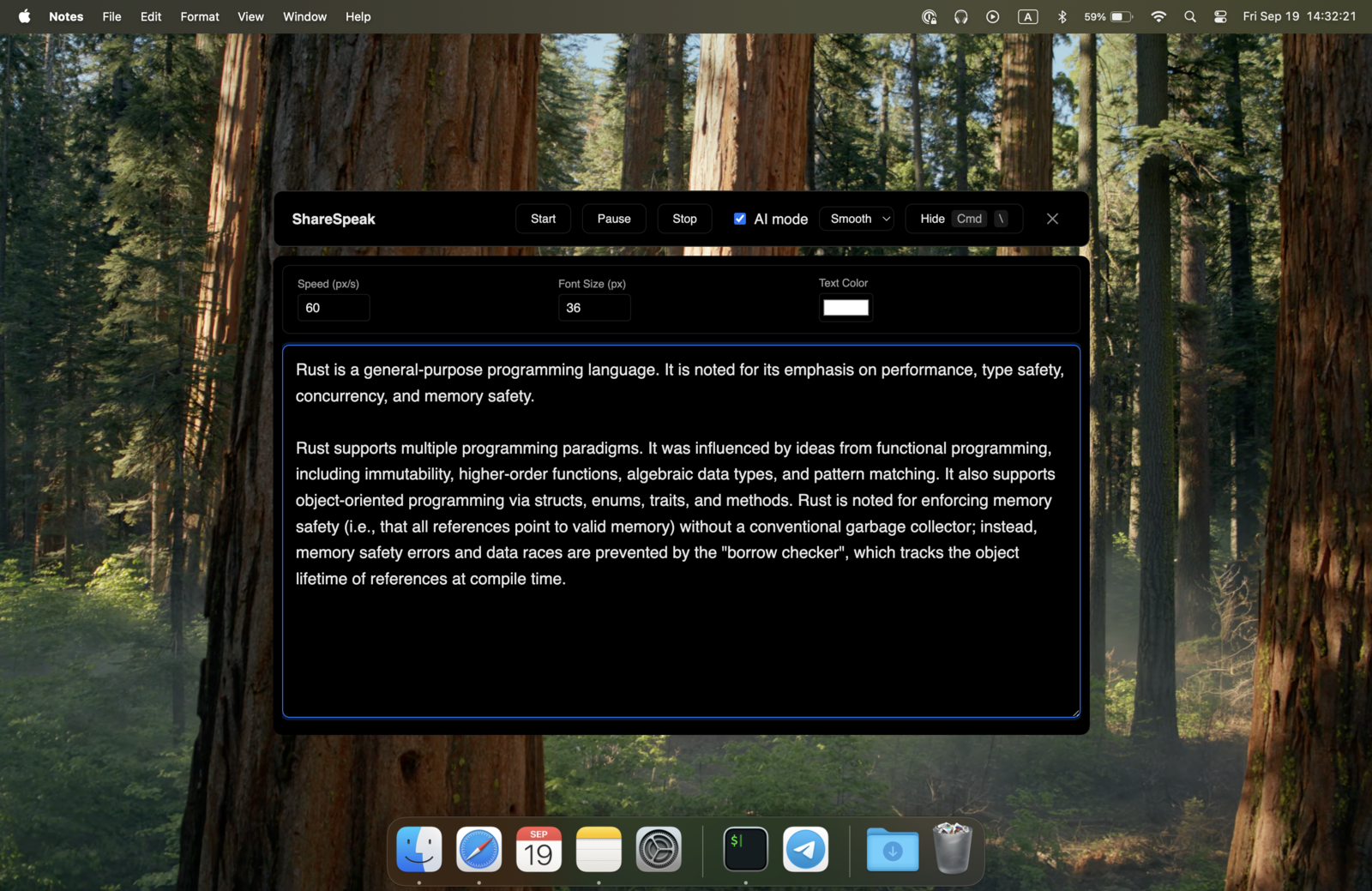
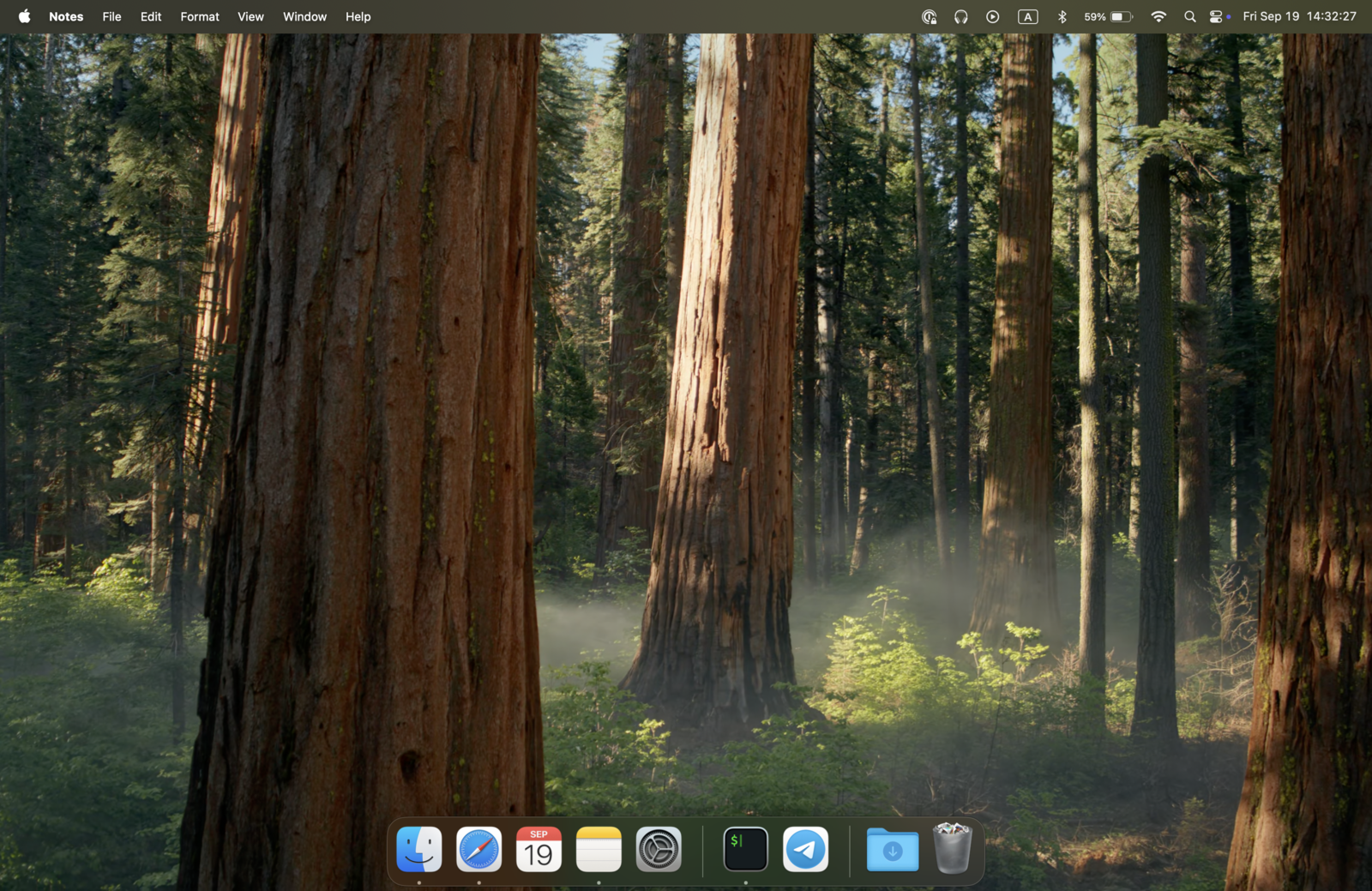
How Invisible Teleprompter Works
OS-Level Window Exclusion — Not a Transparency Trick
Most teleprompter apps that claim to be "hidden" just make the text semi-transparent. You can still see it in recordings — faded, but there. Some use borderless windows that are slightly less obvious, but still captured by screen recording software. A transparent teleprompter is not an invisible one.
ShareSpeak does something different. It tells the operating system to exclude the teleprompter window from all screen capture. This is a native OS-level API — not an overlay hack, not CSS opacity, not a workaround. The window genuinely does not exist as far as screen recording and screen sharing are concerned.
- macOS — uses native window sharing exclusion APIs (CGWindowSharingType)
- Windows — uses SetWindowDisplayAffinity to exclude from capture
This means the invisibility works with every screen capture tool — OBS, Zoom, Teams, Loom, CleanShot, QuickTime, ScreenFlow, Discord, Twitch, Google Meet, and anything else that captures your screen. If it uses the OS screen capture APIs, ShareSpeak is invisible to it. Weighing a teleprompter for Windows 11? See how the options rank in our comparison.
Invisible on Zoom, Meet, Teams, Loom & OBS
The overlay is hidden the same way in every tool, but each platform has its own share flow. Here's the short version per app, with a step-by-step guide for each:
Zoom
Share your screen or a window on a Zoom call and your script stays off the capture — participants see your slides or demo, never the text. See the full teleprompter for Zoom guide.
Google Meet
Present in Meet — entire screen, a window, or a Chrome tab — with the overlay excluded from the share. No Chrome extension needed. See the full teleprompter for Google Meet guide.
Microsoft Teams
Run a Teams meeting or demo with talking points on screen; attendees see only what you present, and it works under managed IT policies. See the full teleprompter for Microsoft Teams guide.
Loom
Record a Loom with your script overlaid — it's invisible in every recording mode, so the finished video is clean. See the full teleprompter for Loom guide.
OBS Studio
Both window and display capture in OBS skip the overlay, so it never lands in your stream or recording — no plugin, no dock. See the full OBS teleprompter setup guide.
Invisible in Every App, on Every Platform
Video Calls
- ✓ Zoom — invisible during screen share
- ✓ Microsoft Teams — invisible during presentations
- ✓ Google Meet — invisible during screen share
- ✓ FaceTime — invisible during SharePlay
- ✓ WebEx, Slack Huddle, Discord — all invisible
Screen Recording
- ✓ OBS Studio — window and display capture
- ✓ Loom — invisible in all recording modes
- ✓ ScreenFlow, Camtasia — clean captures
- ✓ QuickTime, CleanShot X — invisible
- ✓ Any tool using OS screen capture APIs
Streaming
- ✓ Twitch via OBS/Streamlabs — invisible
- ✓ YouTube Live — invisible to stream
- ✓ LinkedIn Live, Facebook Live — invisible
All Platforms
- ✓ macOS — native window exclusion
- ✓ Windows — native display affinity API
- ✓ One $14.99 license covers both platforms
Want It Visible? Just Toggle It Off
Invisibility is on by default — the most common use case. But sometimes you want the teleprompter to appear in your recording: tutorial about ShareSpeak itself, a demo, or recording where you intentionally show your script. One toggle in settings switches between invisible and visible mode. No restart needed, takes effect immediately.
Settings → Invisibility → On/Off — toggle anytime. Default: On (invisible). When off, ShareSpeak behaves like a normal overlay window and appears in screen recordings.
Why an Invisible Teleprompter Changes Everything
Screen Recording Without Retakes
Before invisible teleprompters, screencasters had two options: memorize the script and stumble through retakes, or read from a phone/second screen and look obviously distracted. ShareSpeak solves both — your script is right on screen where you're looking, and it doesn't appear in the recording.
The result: fewer retakes, more natural delivery, and clean recordings every time. One $14.99 purchase saves hours of re-recording across your content career.
Presentations That Look Effortless
Share your screen on Zoom with your talking points right in front of you. Your colleagues see your slides and demos. You see your slides, your demos, and your script. Nobody knows you're reading — you just sound well-prepared.
No split-screen with notes. No phone propped up below the camera. No "sorry, let me check my notes" interruptions. Just smooth, confident delivery.
Live Streaming Without Breaking the Fourth Wall
Streamers use ShareSpeak for scripted segments — intros, sponsor reads, audience Q&A answers, announcements. The overlay sits on screen while you stream, completely invisible to your viewers. No cutting away to read notes, no obvious eye-darting. Your stream looks natural and unscripted, even when it's not.
Invisible + AI Voice Tracking = Hands-Free Script Reading
An invisible overlay solves the visibility problem. But if you still need to manually scroll the text with a keyboard or remote, you're still distracted. ShareSpeak pairs invisibility with AI voice tracking — the text follows your speech in real time.
The combination is what makes it work: you speak naturally, the script scrolls automatically, and nothing appears in the recording. Zero manual input. Zero visible artifacts. Just you delivering your content.
Who Uses an Invisible Teleprompter?
Screencasters & Tutorial Creators
Record software demos, coding tutorials, and walkthroughs with a script on screen that viewers never see. No memorization, no retakes.
Remote Workers & Presenters
Present on Zoom, Teams, and Meet with talking points on screen. Colleagues see your slides — never your notes. Sound prepared without looking scripted.
Streamers
Read sponsor scripts, announcements, and segment intros while live. Your chat and viewers see your stream — not your teleprompter.
Course & Training Creators
Produce polished educational content with natural delivery. Your students see a professional recording. You see the script that made it possible.
Your Script. Your Screen. Their Secret.
Download ShareSpeak and experience the only teleprompter that's truly invisible during screen recording and sharing. AI voice tracking keeps the text moving with you. One $14.99 payment covers Mac and Windows — forever.
Use code FIRST100 for 25% off — $11.24 instead of $14.99
Frequently Asked Questions
What is an invisible teleprompter?
An invisible teleprompter is a script overlay that stays on your own screen while you present or record, but is hidden from screen capture at the operating-system level — so you read your lines while your audience, participants, or viewers see only your slides, demo, or camera, never the text. It's sometimes searched as a "hidden teleprompter" or "transparent teleprompter," though true invisibility is different from transparency.
How is ShareSpeak invisible? Is it just transparency/opacity?
No. ShareSpeak uses native OS APIs to exclude its window from screen capture entirely. On macOS this is CGWindowSharingType, on Windows it's SetWindowDisplayAffinity. The window doesn't just look hidden — it's genuinely excluded from capture at the system level. This works with every recording and screen sharing tool.
Is a transparent teleprompter the same as an invisible one?
No. A transparent or low-opacity teleprompter is still captured by screen recording and screen sharing — it just looks faint, and it's still there in the file. An invisible teleprompter is excluded from capture at the OS level, so it doesn't appear at all. ShareSpeak is the latter: genuinely absent from the recording, not just see-through.
Does it work with Zoom screen sharing?
Yes. When you share your screen or a specific window on Zoom, ShareSpeak is invisible to all participants. They see your slides, your desktop, your demo — never the teleprompter text. This also works with Teams, Google Meet, WebEx, and every other video call app.
Does it work with OBS window capture and display capture?
Yes — both modes. Whether you capture a specific window or your entire display in OBS, ShareSpeak is invisible. The same applies to Streamlabs, ScreenFlow, Camtasia, and any recording tool that uses OS-level screen capture.
Can I make it visible when I want?
Yes. One toggle in settings switches between invisible and visible mode. Default is invisible. Turn it off when you want the teleprompter to appear in recordings — for demos, tutorials about the app, or any situation where showing the script is intentional. Takes effect immediately, no restart needed.
Does the invisibility work on both macOS and Windows?
Yes. ShareSpeak uses native APIs on each platform — macOS and Windows each have their own mechanism for excluding windows from capture. One $14.99 license covers both platforms.
Do other teleprompter apps have invisible mode?
Most don't. Browser-based teleprompters (SpeakFlow, EasyPrompter, VEED, Riverside) are always visible since they're browser tabs. Mobile apps (PromptSmart, Parrot) run on your phone, not your screen. Desktop apps like PowerPrompter and VODIUM have transparency/opacity modes — but transparent is not invisible. Only ShareSpeak uses OS-level capture exclusion to make the window genuinely undetectable.
Does ShareSpeak also have voice tracking?
Yes. Invisibility is one half — AI voice tracking is the other. The teleprompter follows your speech in real time so you don't need to manually scroll. Invisible overlay + voice tracking = completely hands-free, completely hidden script reading. That's the core of ShareSpeak.
The Teleprompter That Doesn't Exist in Your Recording
Read your script while sharing your screen. Record tutorials with invisible notes. Stream with hidden talking points. $14.99. Mac and Windows. Forever.
Get ShareSpeak — $14.99