From the creator of ShareSpeak
I built ShareSpeak because I needed it myself. I wanted to record long screencasts for YouTube — coding tutorials, product demos, technical walkthroughs — but I kept losing my train of thought mid-recording. I'd forget a key point, stumble on an explanation, and end up re-recording the same 20-minute screencast three times.
I didn't need a full script word-for-word. I needed my main talking points on screen so I wouldn't drift off-topic during a long take. But every teleprompter I tried was either visible in my screen recording, or ran in a browser tab I couldn't overlay on top of my IDE.
So I built one that's invisible to screen capture and sits on top of any app. I used it to record this video:
The teleprompter was on screen the entire time. You can't see it. That's the point.
Teleprompter for YouTube Creators — Record Screencasts Without Losing Your Thread
ShareSpeak is the invisible AI teleprompter for YouTube creators who record screencasts, tutorials, and demos. Keep your talking points on screen, overlay it on any app, and your viewers never know it's there. $14.99 lifetime.
Why YouTubers Choose ShareSpeak
Invisible During Screen Recording — Your Viewers See Nothing
This is the feature that makes ShareSpeak different from every other teleprompter. When you record with OBS, ScreenFlow, Camtasia, or any screen capture tool — ShareSpeak is not in the recording. Not semi-transparent. Not faded. Not there. The OS literally excludes it from capture.
Your viewers see your IDE, your browser, your terminal, your slides — whatever you're demonstrating. You see all that plus your talking points floating on top. Nobody knows you're reading.
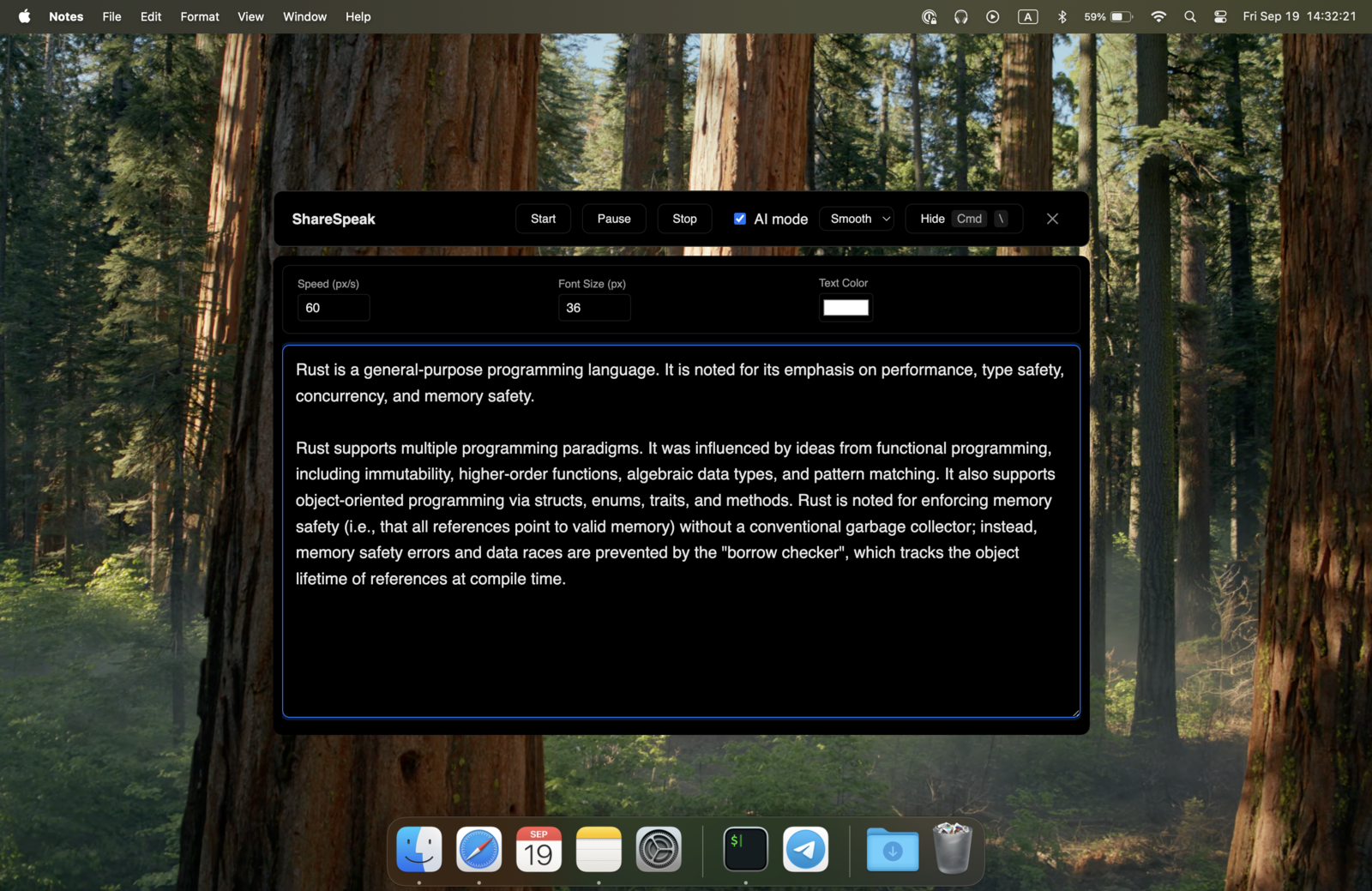
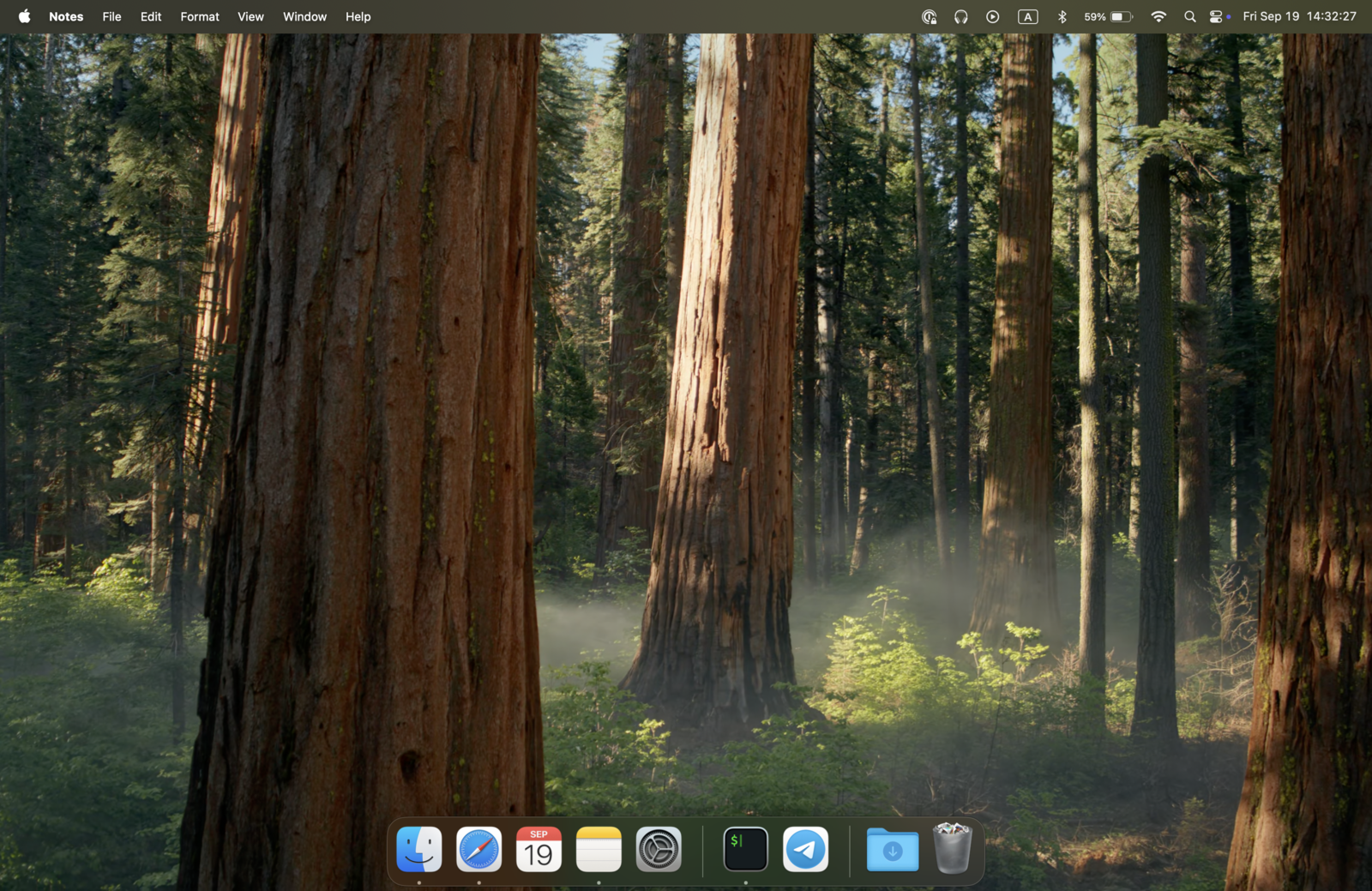
Overlay on Any App — VS Code, Browser, Terminal, Anything
ShareSpeak is a floating overlay window. Position it anywhere on your screen — top, bottom, side, center. Resize it to fit. It sits on top of whatever app you're demonstrating:
- Code editors — VS Code, IntelliJ, Xcode, Vim
- Browsers — Chrome, Firefox, Safari, Arc
- Terminal — iTerm, Warp, Terminal.app
- Design tools — Figma, Sketch, Photoshop
- Any application — if it runs on your desktop, ShareSpeak overlays on it
No split-screen awkwardness. No second monitor with notes. No phone propped up next to your screen. Your script is right where you're looking, on top of the app you're recording. Recording on a PC? See our ranking of the best teleprompter software for Windows.
Notch Bar Mode — Script Next to the Camera
If you record face-to-camera on a MacBook, notch bar mode places your script text right inside the notch area — the closest possible position to your FaceTime camera. Your eyes naturally look near the lens while reading, so you maintain eye contact without trying.
For screencast-only recordings (no facecam), use the floating overlay instead — position your notes wherever they're most convenient without blocking what you're demonstrating.
AI Voice Tracking — No Manual Scrolling Mid-Take
The worst thing during a screencast is fumbling with scroll controls when you should be focusing on your demo. ShareSpeak follows your voice with AI speech recognition — the text moves at your exact pace. No keyboard shortcuts to hit, no remote to press, no scroll wheel to fiddle with.
Go off-script to explain a bug you just found? The teleprompter waits. Rush through a section you know by heart? It keeps up. Come back to the script after an improvised tangent? Pick up right where you left off.
Talking Points, Not Word-for-Word Scripts
Most YouTube creators don't need to read a full script verbatim — that sounds robotic. What you need is a list of key points so you don't forget to mention something important 15 minutes into a screencast. ShareSpeak works perfectly for this:
- Bullet points that keep you on track
- Key phrases and transitions between sections
- Technical details you don't want to get wrong (API names, version numbers, commands)
- CTAs and sponsor reads you need to hit word-for-word
Voice tracking works with both — it follows whatever text you put in, whether that's a full script or sparse bullet points.
Fewer Retakes = More Videos Published
The math is simple. A 20-minute screencast without a teleprompter might take 3-4 attempts to get right — that's 60-80 minutes of recording for one video. With ShareSpeak keeping your talking points visible, you nail it in 1-2 takes. That's an hour saved per video.
Over a channel with weekly uploads, that's 50+ hours per year you get back. Time to make more content, improve your editing, or just not burn out. And ShareSpeak cost you $14.99 — once.
How YouTubers Use ShareSpeak
Coding Tutorials
Overlay talking points on VS Code. Explain complex concepts without forgetting steps. Viewers see your code, not your notes.
Product Reviews & Demos
Keep specs, comparisons, and key features on screen while showing the product. Hit every point in one take.
Talking Head + Screencast
Switch between facecam and screen share mid-video. Notch mode for camera segments, overlay for screencast segments. Invisible in both.
Sponsor Reads
Nail the sponsor script word-for-word on the first take. No awkward pauses, no checking notes, no visible prompter in b-roll.
Built by a Creator, for Creators
ShareSpeak exists because I couldn't find a teleprompter that was invisible during screen recording and worked on top of any app. Now it exists, it costs $14.99, and it works on Mac and Windows. If you make YouTube videos and record your screen — this is the tool.
Use code FIRST100 for 25% off — $11.24 instead of $14.99
Frequently Asked Questions
Will my YouTube viewers see the teleprompter in my recording?
No. ShareSpeak uses OS-level window exclusion to hide itself from all screen capture tools — OBS, ScreenFlow, Camtasia, QuickTime, anything. Your viewers see a clean recording. You see your script. This works on Mac and Windows.
Can I overlay it on top of VS Code while recording a coding tutorial?
Yes. ShareSpeak floats on top of any application — VS Code, IntelliJ, a browser, terminal, anything. Position and resize the overlay wherever you want. It's invisible to screen capture, so your viewers only see your code.
I don't script my videos word-for-word. Is ShareSpeak still useful?
Absolutely. Most YouTubers use it for bullet points and key talking points — not full scripts. Keep a few lines visible so you don't forget your main argument 15 minutes into a screencast. Voice tracking works with sparse notes just as well as full scripts.
Does it work with OBS Studio?
Yes — both window capture and display capture modes. ShareSpeak is invisible in OBS regardless of how you capture. This also applies to Streamlabs and every other OBS-based tool.
How does notch mode help with YouTube face-to-camera recording?
On MacBooks with a notch, ShareSpeak can place your script text directly in the notch area — right next to the camera. Your eyes naturally look near the lens while reading, creating natural eye contact. When you switch to screencast mode, use the floating overlay instead.
$14.99 lifetime — what's the catch?
No catch. ShareSpeak is an indie tool built by a solo creator who needed it for his own YouTube channel. It's a native desktop app with no server costs to cover, so there's no reason to charge monthly. $14.99 once, all features, all platforms, forever.
Stop Re-Recording. Start Publishing.
Your talking points on screen. Your voice controlling the scroll. Your viewers seeing nothing but your content. $14.99. All platforms. Forever.
Get ShareSpeak — $14.99