
By Vlad, who builds ShareSpeak · Updated October 25, 2026
PowerPoint Teleprompter: Built In for Recording, Not for Live Talks
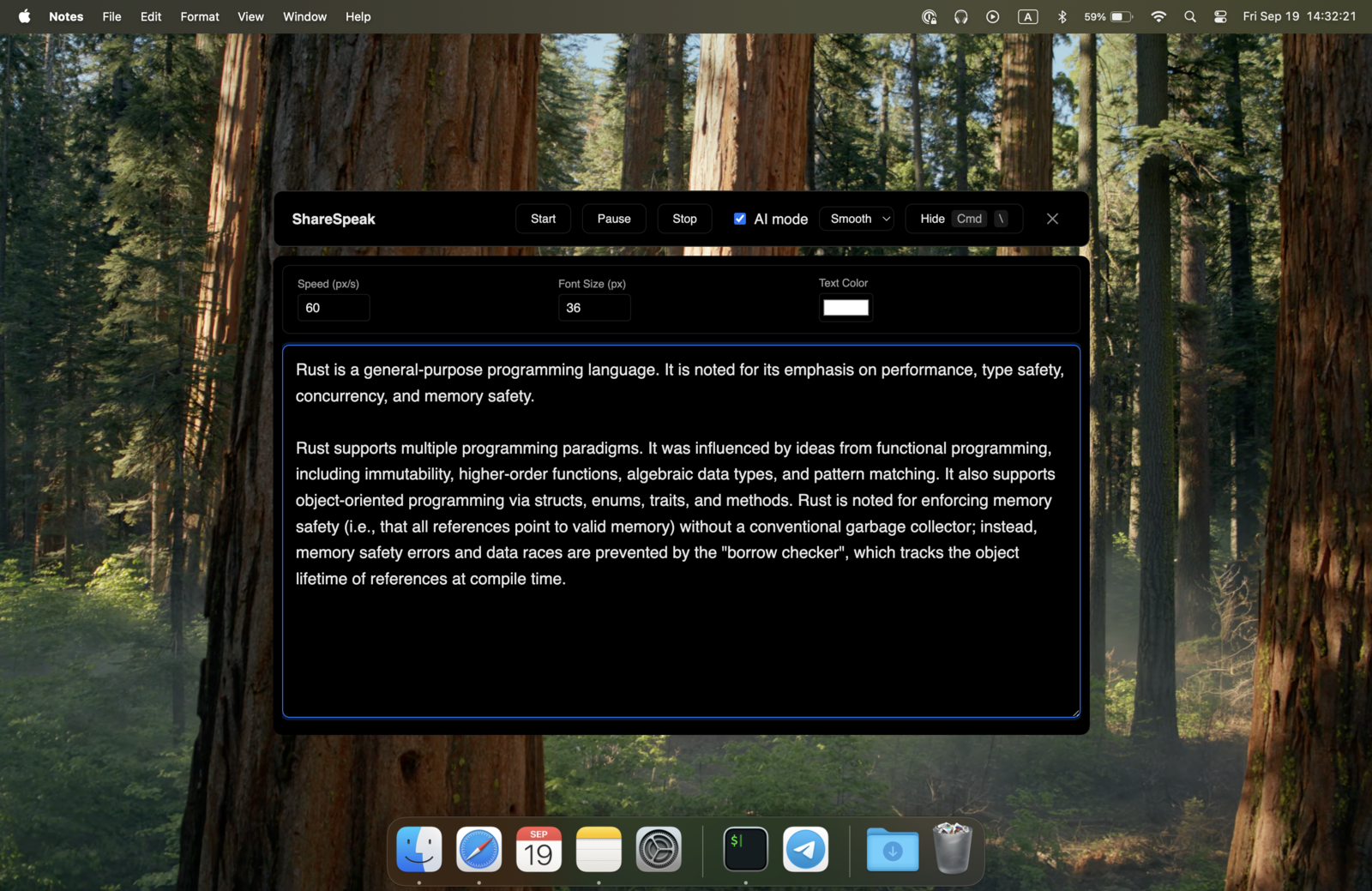
PowerPoint has a Teleprompter view, but it lives in Recording Studio: it scrolls your speaker notes while you record a slide show. When you present live on Zoom, Teams or Meet, you get Presenter View notes instead. The live-talk fix is a teleprompter overlay screen sharing can’t capture: paste your notes into ShareSpeak, put it under the webcam, and it follows your voice for $14.99 once. Disclosure: ShareSpeak is our app.
How to Turn On Teleprompter View in PowerPoint
- Write your script in the Notes area under each slide.
- Start a recording: Record, then From Beginning (or From Current Slide). Recording Studio opens.
- In Recording Studio, open the Views menu (lower right) and choose Teleprompter. The current slide’s notes appear above the slide preview, close to the camera.
- Turn on auto-scroll and adjust the scroll speed, then rehearse once before you record.
Our honest take: for recording a narrated deck, PowerPoint’s own teleprompter is free and does the job. It just isn’t there when you present live, and it scrolls at a speed you set, not at your pace. Source: Microsoft Support, “Record your presentation”, checked October 25, 2026.
Presenting Live on Zoom, Teams or Meet: 3 Options Compared
| Setup | Price | What you need | How it scrolls | Seen by the audience |
|---|---|---|---|---|
| PowerPoint Presenter View | Included | A second monitor, or sharing only the slide show window | Notes per slide; you scroll | Yes, if you share your entire screen |
| PowerPoint Live in Teams | Included with Teams | A .pptx or .ppsx deck in a Teams meeting | Notes pane per slide | No, attendees get the slides |
| ShareSpeak overlay | $14.99 once | Mac or Windows 10/11; Zoom, Teams or Meet | Follows your voice | No, excluded from screen capture |
Presenter View is great on a stage with a second screen. On a single laptop in a video call it gets fiddly: share the whole screen and your notes go with it. PowerPoint Live solves that inside Teams, for PowerPoint decks only. ShareSpeak works the same whether you share slides, a demo or a browser, in Zoom, Teams or Meet. More on the Teams side in our teleprompter for Microsoft Teams guide.
Set Up ShareSpeak Over PowerPoint in 4 Steps
1. Install ShareSpeak
Buy a license, then download ShareSpeak for Mac or the Windows version and paste your key on first launch.
2. Paste your speaker notes
Copy the notes from your slides into a new script in the Scripts Library. Start a new paragraph for each slide, so the script and the deck stay in step. Already keep notes in a doc? See the teleprompter with notes setup.
3. Start the slide show and place the overlay
Presenting from one screen? Set the show to play in a window (Slide Show, Set Up Slide Show, “Browsed by an individual (window)”), start it, then put ShareSpeak in a narrow column right under the webcam.
4. Share and present
Share the slide show window or your entire screen in Zoom, Teams or Meet. ShareSpeak stays out of the share and follows your voice, so you click through slides while the script keeps your place. It’s the same idea as our invisible teleprompter for screen sharing; platform guides: teleprompter for Zoom, teleprompter for Google Meet.
Keynote and Google Slides: Same Setup
Keynote has a presenter display with your notes that viewers don’t see, and for video calls Apple suggests playing the show in a window (Play, then In Window) and sharing that window. Google Slides opens speaker notes in a separate Presenter view window (the arrow next to Slideshow, then Presenter view).
Both work, but both make you look down at a notes window, and neither follows your voice. ShareSpeak sits on top of either one the same way it does over PowerPoint: paste the notes, place the overlay under the webcam, share your slides.
Present your deck live, with a script only you can see
Voice-following, hidden from screen share, for PowerPoint, Keynote and Google Slides on Mac and Windows. $14.99 once, 2 devices per license, 21-day refund window (see our terms).
Use code FIRST100 for 25% off — $11.24 instead of $14.99
PowerPoint teleprompter FAQ
Does PowerPoint have a teleprompter?
Yes, for recording. PowerPoint's Recording Studio has a Teleprompter view that shows the current slide's speaker notes above the slide preview while you record, with auto-scroll and an adjustable scroll speed. It isn't part of a live slide show, so when you present on Zoom, Teams or Meet you need Presenter View notes or a separate teleprompter.
How do I enable a teleprompter in PowerPoint?
Write your script in the Notes area of each slide, then start a recording (Record, then From Beginning) to open Recording Studio. In Recording Studio, open the Views menu and choose Teleprompter. Your notes appear near the camera above the slide preview; turn on auto-scroll and adjust the scroll speed before you record. It works in PowerPoint for Microsoft 365 on Windows and Mac.
How to view notes in PowerPoint while presenting without others seeing?
With two monitors, turn on Presenter View (Slide Show, then Use Presenter View on Windows; Slide Show, then Presenter View on Mac): your notes stay on your screen and the audience sees the slides. On one screen in a video call, share only the slide show window, because sharing your entire screen also shares Presenter View. Or keep your notes in an overlay that screen sharing doesn't capture, such as ShareSpeak, which also scrolls by voice.
Does ShareSpeak work with PowerPoint Live in Teams?
Yes. PowerPoint Live sends your slides through Teams and gives you a Notes pane. ShareSpeak sits on your own screen with your full script, follows your voice, and never appears in what attendees see. A setup that works well: the Notes pane for slide cues, ShareSpeak for the full script.
Can I import my PowerPoint deck into ShareSpeak?
You paste the text instead. Copy your speaker notes into a new script in ShareSpeak's Scripts Library once; you get a word count and speaking-time estimate, and the deck itself stays in PowerPoint where it belongs.
Does it work with Keynote and Google Slides?
Yes. ShareSpeak doesn't depend on the slide app, so the setup is the same for Keynote, Google Slides and PowerPoint on Mac and Windows: paste your notes, put the overlay under the webcam, share your slides.